Quote with confidence
Build a professional quotation from your product list, agreed prices, taxes, payment terms, and customer information.
Make clear quotations, confirm customer orders, and keep delivery and invoice details close at hand.
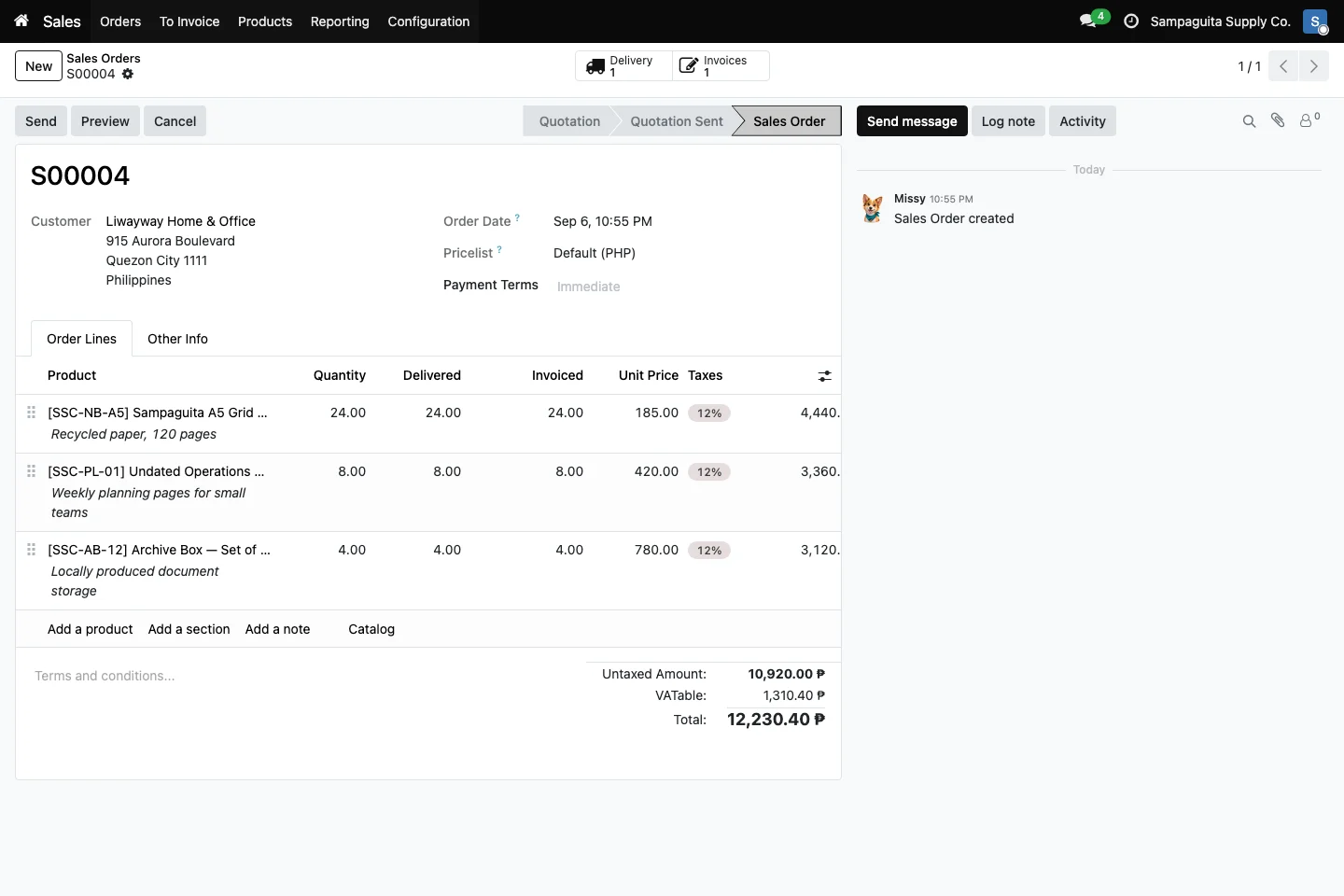
When prices, customer notes, delivery details, and invoice status live in different files, simple follow-up becomes hard work. Cayamanan keeps the whole sale together. Your team can see what was offered, what the customer accepted, what has been delivered, and what still needs to be billed.
Build a professional quotation from your product list, agreed prices, taxes, payment terms, and customer information.
Once a quotation is accepted, the same record becomes the sales order your team follows through delivery and invoicing.
Smart links show related deliveries and invoices, so people spend less time asking for updates.
Choose products, quantities, and prices in one place. Add payment terms and useful notes, then preview the document before it goes to the customer. A consistent quotation helps your business look prepared and gives the customer a clear basis for approval.
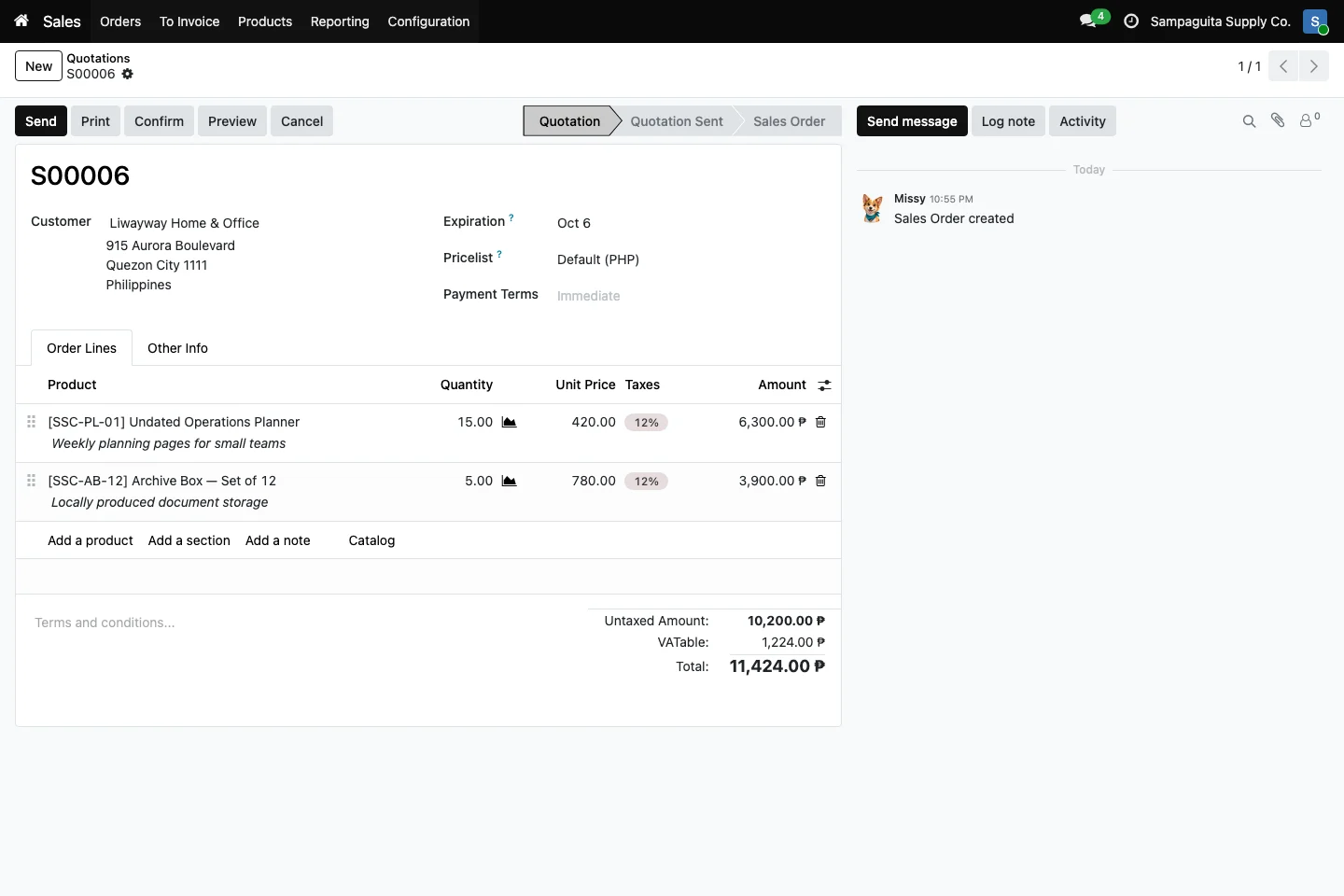
Confirm the quotation when the customer is ready. Cayamanan keeps the original lines, totals, and customer details on the order. Delivered and invoiced quantities appear beside ordered quantities, making it easier to spot work that is finished and work that still needs attention.
When Accounting is in use, items ready to bill can flow from the sales order into a customer invoice. The related order stays visible, reducing repeated entry and helping sales and finance work from the same facts. Exact steps depend on your invoicing policy and setup.
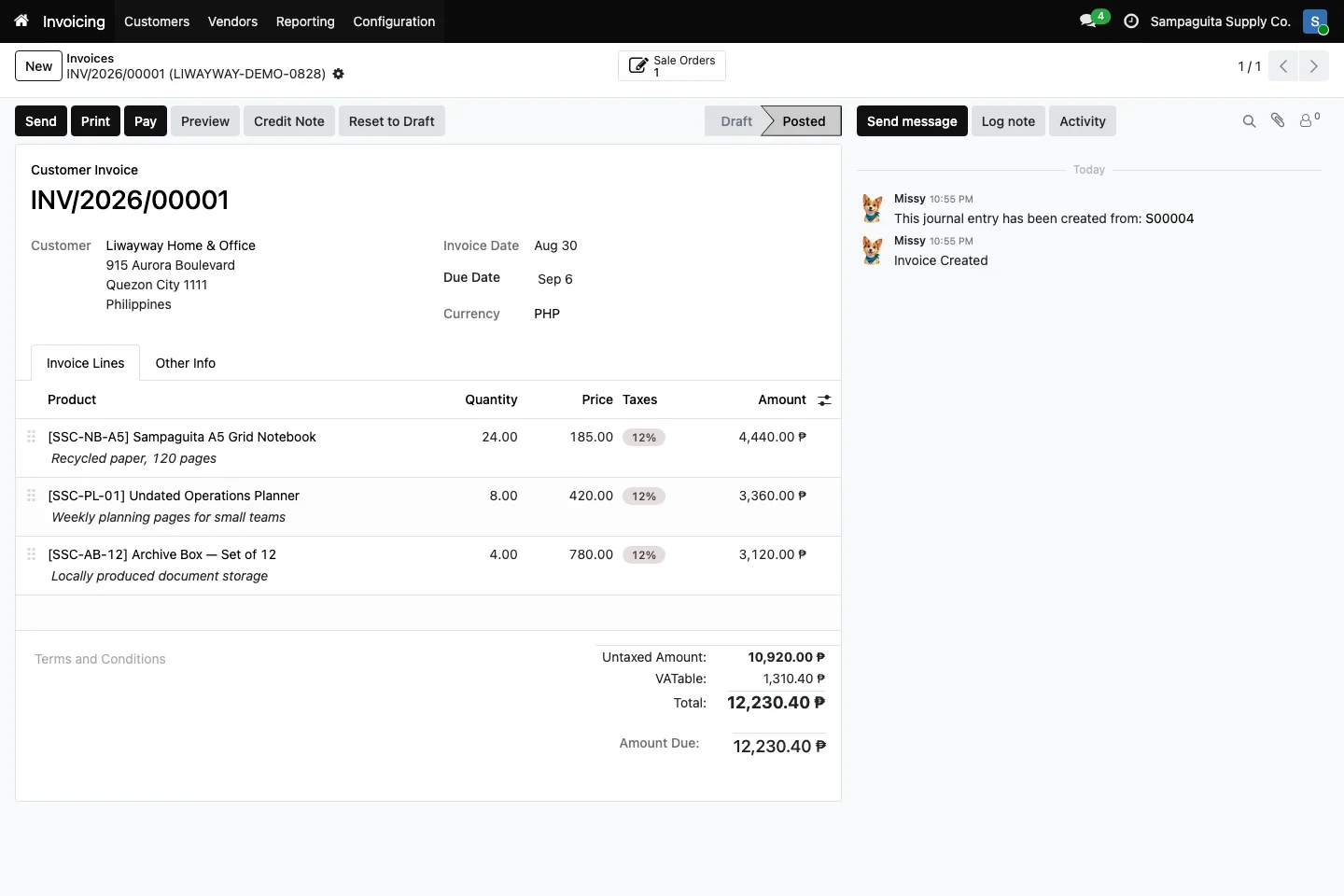
The steps can vary based on the tools your team uses and each person's role.
What you see can vary with the apps in use and your setup.
Yes. Standard documents can be configured, and selected quotation layout changes are included in the optional Starter Pack scope.
Yes. With Inventory installed and configured, confirmed orders can create delivery work for stockable products.
Not automatically in every setup. Your invoicing policy decides when and how invoiceable quantities are prepared.